One of the things we all face when building web sites is choosing colors for graphics and text and then determining the hex or RGB values of those colors. Various image programs contain color pickers and also have the ability to sample colors from loaded graphic images. However, I get many of my color ideas from web pages. It is cumbersome, at best, and sometimes impossible, to pull web graphics into my image editing programs or to sort through source code to determine the color values used.
ColorZilla, the Mozilla Firefox browser extension presented here, is an advanced color picker similar to those found in Photoshop and Paint Shop Pro allowing you to easily determine the value of any color you see on a web page with just a click of the mouse! In addition, ColorZilla allows you to zoom in on web page text, obtain mouse position coordinates, and view information about the various DOM nodes (elements) on the page.
Installing ColorZilla
To install the free Colorzilla browser extension, first open/close all but one Firefox tab/window. Loading the extension requires a browser re-start so better to close extra windows now.
Use Firefox to navigate to Alex Sirota's
ColorZilla download
 page. The "Install ColorZilla 1.0" link is found at the top of the right column on this page. Click the Install link to begin the installation process.
The Software Installation dialog box appears. Click Install Now.
 When the download is complete, click the Restart Firefox button. Once Firefox has been re-started, the ColorZilla eyedropper icon appears at the lower left corner of the browser viewport.
Using ColorZilla
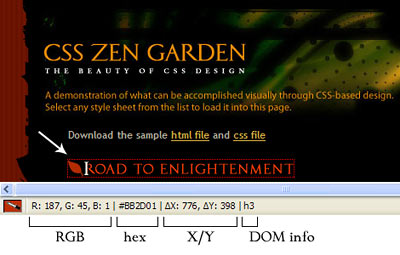
The primary use of ColorZilla is sampling colors from a web page.
- Click once on the ColorZilla eyedropper icon in the lower left corner of the browser window. The mouse pointer becomes an I-beam, shown in white in the example image. (Some versions of ColorZilla use cross-hairs.)
- Float the mouse over various areas of the web page and observe the way page elements are outlined. Also observe the changing information in the bar next to the eyedropper icon. The point which is being calculated is the center of the I-beam.
- Note that the background color of the eyedropper icon changes as you float over different elements. This provides confirmation of the color currently being sampled.
The ColorZilla information bar displays the RGB and hex color values, the current X/Y coordinates, and the current DOM node (element) over which the mouse is positioned.
To toggle the ColorZilla tool off, click the eyedropper icon again. The keystrokes for turning the ColorZilla tool on/off are Shift+Escape.
The ColorZilla Menu
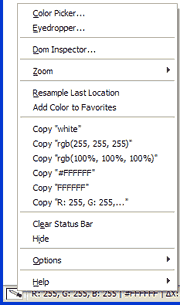
ColorZilla uses a popup menu which contains a comprehensive collection of useful features. To access this menu point to the ColorZilla eyedropper icon:
PC - Right-Click || Mac - Command-Click
To venture beyond the basic ColorZilla functions outlined below, select Help | Online help from the menu to access the ColorZilla online documentation.
Capturing a Color Value to the Clipboard
ColorZilla lets you copy a color value from the screen and paste it into another program, such as your code editor.
- Click the ColorZilla eyedropper icon.
- Point the mouse to the desired screen object and click on it. Clicking freezes the information bar details for the chosen object.
- Open the ColorZilla menu and choose one of the listed Copy functions.
- Open the program into which you wish to transfer the color value, and Paste.
Use Zoom to Sample Text Color
Using the Zoom function makes it easier to sample text color from a web page.
- Open the ColorZilla menu and choose Zoom.
- Select a zoom size from the sub-menu. I usually zoom in about 300% on normal text.
- Perform the color sampling, then use the browser's Refresh function to return the page to its default size.
Creating a Color Palette from Sampled Colors
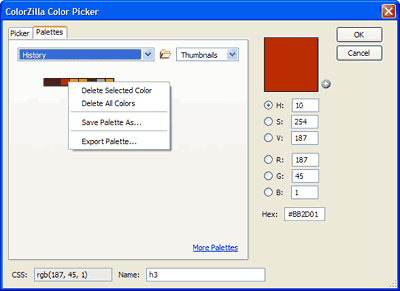
As an alternative to sampling/copying/pasting one color at a time, you can sample multiple colors using the ColorZilla History palette to store sequential color samples. The History Palette also allows you to save sampled colors as a named palette and/or export them in CSS file format.
To sample multiple colors:
- Click the ColorZilla eyedropper icon.
- Hold down the Shift key, then point to and click on the desired screen objects, one after the other. Release the Shift key when sampling is done.
Using the History Palette:
- From the ColorZilla menu, choose Color Picker.
- In the Color Picker dialog box, click the Palettes tab.
- Click the palette drop down menu and choose History. A collection of the sampled colors is displayed.
- When you click on a color swatch in the History palette, a large color swatch and its RGB and hex values are displayed on the right side of the dialog box. The name of the DOM object from which the color was sampled is also displayed at the bottom.
- You can manage the History color palette in various ways by pointing to the swatches, then right-click||command-click to access the History popup menu:
- To remove colors from the History palette, choose either Delete Selected Color or Delete All Colors.
- To save the current History color palette for future use, choose Save Palette As... and give it a meaningful name such as the source of the sampled colors. This palette name will appear on the palette drop down menu the next time you open the Color Picker.
- To export the History color palette as a CSS file, choose Export Palette... and choose a file location and name for the saved file. The resulting CSS file will contain the name of the DOM object from which the color was sampled, plus the hex and the RGB color values.
The ColorZilla options I've outlined above are by no means all that ColorZilla has to offer. This is just a sampling of the usefulness of the tool. In future weeks, I may cover other specific ColorZilla features as time allows. In the meantime feel free to explore ColorZilla's
Help
information on your own!
Resources
- Alex Sirota's
ColorZilla download
page
- ColorZilla
Help