zzz | sunset table | layout tables | hw
| 1 |
2 |
3 |
4 |
5 |
6 |
| 7 |
8 |
9 |
10 |
| 11 |
12 |
13 |
14 |
15 |
| 16 |
17 |
18 |
19 |
| 20 |
21 |
22 |
The process used to create this table:
- I started by going to File, and chose New, General, Basic Page, HTML. Then I selected CREATE.
- I saved the page as table_sunset.html.
- I titled the page, and saved it again.
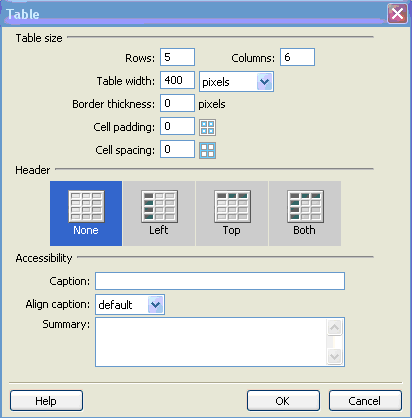
- To create the table, I put the insertion point where I wanted the table, went to Insert, and selected Table.
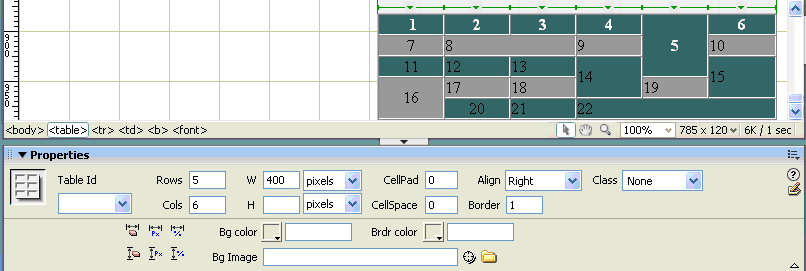
- On the Table pop-up menu I chose 5 for the number of rows, 6 for the number of columns, 400 pixels for the table width, and left the other options alone (0 or blank). With that, I clicked "OK", and the table appeared on this once-blank web page.
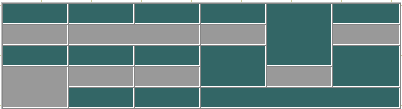
- From here, I eye-balled the table I was to clone, and found the cells that needed to be merged. To merge cells, I selected them (rolled my mouse over them until they became highlighted). Then, I right-clicked within the highlighted section, and from the pop-up menu I selected Table, then Merge Cells. I started from the top left, and worked from left to right, and then down each row in the same fashion, until the layout of the cells looked the same as the table we were to clone. The order of merging the cells, I believe, doesn't matter).
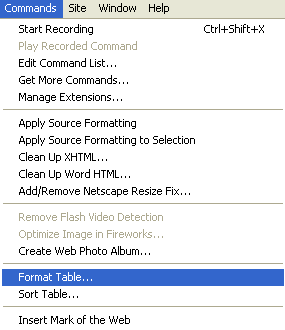
- Next, I selected the table (by hovering the mouse pointer over the lower right corner of the table until a little iconic image of a table emerged, and then clicking once with the left-key of the mouse). Then, I went to Commands, and chose Format Table.
- In the Format Table screen, I had to change the colors of the alternating rows. For the first row's color I highlighted the word yellow, and then wrote #336666. To change the second row's color, I hit the tab key, which moved the insertion point to that box. This highlighted the word orange, which was deleted as I wrote over it #999999 (the hexidecimal color code for grey).
- Still on the Format Tables screen, I chose to align the top row text in the center, to have bold as the text style, and white as the text font. On the left column, I left the alignment as center, and the text style as regular. Finally, I selected to apply a border of 1 (pixel). To close the screen, I clicked Apply (which meant I could actually see the changes before they were finalized), and then OK. Violá!.
- Finally, I added the numbers. How odd that was - the cells re-adjusted in size as I added each number. Not only that, but the numbers lined up exactly as I wanted them to - no extra formatting needed!
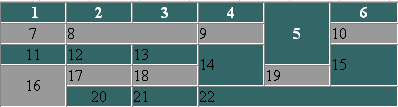
What does this tell us? The formatted table options must already be set up to center the left colum, and, indeed, to center the left-most cell in a row (otherwise, why would #20 be centered?). Another thing: #5 is in the top row (because the number 5 is bold, and in white font). This confirms the fact that cells are created left to right, and top to bottom. Finally, the default formatting of cells is to the left. All in all, an exercise well-worth the effort of doing it...
What attribute(s) did I change in the Format Table options to create this table: the color(s) of the alternating rows and the text in the top row.
By the way, here's the table again - I had to actually re-create it to be able to explain the exact process I took to make it! Just to balance the page, I've aligned the table to the right. I did this by selecting the table, this time by clicking the table tag (<table>) in the Tag Selector bar. Then, in the Properties Inspector, I changed the alighnment to Right.
| 1 |
2 |
3 |
4 |
5 |
6 |
| 7 |
8 |
9 |
10 |
| 11 |
12 |
13 |
14 |
15 |
| 16 |
17 |
18 |
19 |
| 20 |
21 |
22 |