Editing Graphics
This week's assignment will have you practicing all of the image editing skills necessary to complete the graphics project for next week. Your assignment is to take a background image and a second image of your choice and create a composite of the two images, and to place some stylized text on top of it.
Last week you wrote a script for your graphics project, made a storyboard for it (5 to 10 images total) and collected images for the project.
Now that you have collected your background images, choose one of them to practice on. In a second we'll import it and start editing, but the first task is to create a 'canvas' that's the right size for our project.
Creating a canvas and resizing Images
We'll be working at 800 x 600 pixels, which is a convenient size for the web. You'll probably need to resize your image to work with on this canvas.
1. Open Photoshop Elements, choose the Edit function.
2. Go File>New>Blank File

3. In the dialog box that opens, type the file name into the Name field, and use the following parameters: Preset: Web; Size: 800x600; Background color: White.
You should now have a white rectangle on your screen. This is your canvas. The canvas defines the limits of the picture that you are creating, just as it would if you were painting a picture with real paint and brushes. To resize the images you selected to work on the canvas:
4. Go File>Open> and open the first of the images that you saved for the graphics project. In my example, this is called Audience1.jpg

5. The image will open in a new tab; you’ll see its name in the tabs just above the white rectangle. Switch tabs so that you can see the image.
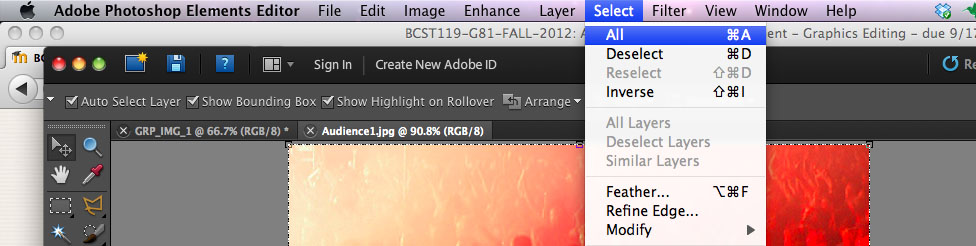
6. Select the image by clicking ctrl-A (PC) or command-A (Mac) and then copy the image. Switch tabs to your canvas and paste the picture on it (by using ctrl-V on a PC or command-V on a Mac). This will automatically create a new layer with the picture in it. It will be called Layer 1, and it will be highlighted in pale blue in the Layers panel. If you don't see the Layers panel, select from the Menu bar Window>Layers to toggle on the Layers panel.

7. Using the canvas as your guide, resize the background image to fit the canvas. The easiest way to do this is to grab a handle at the corner of the image and drag it. When you have made the background image fit the canvas, click on the green ‘check mark’ to accept the change.

8. Save a .psd copy of your project file. You gave the file a name when you created the canvas, however you can change the file name at this point.

Applying Effects
It’s not necessary, but now that you have a correctly sized background image you might want to try applying effects to it. Just drag an effect from the effects panel (to the right of the image) and drop it on the image. If you like the effect, click on the apply button in the effects panel. Try not to use too many different effects; they can overwhelm the aesthetics of your project.
Adding a second image to your background image
This is called compositing. Basically, we’re going to stack a second image on top of your background image. This takes full advantage of the concept of Layers in Photoshop. Think of layers as transparent sheets of plastic that we can lay one on top of the other. We can stack as many images on top of each other as we want (well, almost).
It’s really easy to add a new image on a new layer. Just open the new image in Photoshop, select all of it and copy it, then change tabs to see the slide that you’ve been working on, and paste the second image. Photoshop will automatically create a new numbered layer with the image on it.
For now, the second image (which is ‘on top’ of the background) will completely hide the background image. Don’t worry, you haven’t lost anything! Since editing in Photoshop is non-destructive, the choices that we make now about which pixels to cover over and what not to cover over can be changed at any time later. You never destroy any pixels.
Using a layer mask to make a selection on an image
We can select all or only part of the second image to cover over your background image. To select a smaller part of the second image to cover the background, we’ll use a layer mask.
Let’s return to our example, which contains a background image that you resized to 800 x 600 pixels, and a second image that you pasted on top of it. Make sure that the Layer with the second image is active (it’ll be highlighted in blue). Now use one of Photoshop’s selection tools to make a selection on the photo.
Making a Selection with the Magic Wand
Watch a video that teaches you how to make selections http://adobe.ly/wTGY3z
Now you're ready to me a selection of your own!
1. Click with the Magic Wand (or paint with the Quick Selection Tool) until you have made a very precise selection over the object. When you click with the Wand it selects pixels of similar values next to the place where you clicked. So click on enough pixels in the object that you want to select and you should eventually select the whole thing.
2. I’ve given you an easy example below, because my second image is a silhouette that contains only pure white and pure black pixels. I only had to click on the silhouette once with the magic wand, and the entire silhouette was selected!

3. You’ll see the selection surrounded by flashing lines that Photoshop users call “the marching ants”. If you don't like your selection, hit the 'esc' key on your computer to 'deselect' (you can also choose Select>Deselect) and then try again. For more about selections, see the video linked above.
Applying a Layer Mask.
Now we’re going to apply a mask to the layer with the second image on it. The mask will control what areas of the second image will cover the first, and what areas will be masked out and so will not cover over the background layer.
Returning to the active layer with the silhouette that I selected, I will go to the Layer menu (top of the application window) and choose Layer Mask>Reveal Selection. This will mask the entire second image except for the area that I selected – the silhouette.

If you look at the layer in the Layer panel, you will see a second thumbnail with most of the thumbnail blacked out. This is the layer mask that we just created. Where it is white, the pixels of the second image show and cover over the background. Where the mask is black, the pixels do not show.

Adding Text to the Image
You can use various types of text to put your script on the photo backgrounds.
Try to create a visual hierarchy, using size, color, placement and other effects to emphasize text
Add point text to the image:
1. In the Tools panel, click the Horizontal Type tool.
In the image, click where you want to begin adding text. An insertion point will appear where you clicked, and a type layer will appear in the Layers panel.
3. On the options bar, at the top of the window, specify the formatting options you want to use.
4. If you want to specify the text color, click the “Set the text color” button on the options bar to open the Select text color dialog box. Click or enter values to select a color, and then click OK. You can also use the Color and Swatches panels to set the text color.

5. Type to add the desired text to the image.
6. To change the formatting, select the text you want to format and then specify formatting options on the options bar. There are several ways to select text:
Drag across the text to select it.
Double-click to select one word.
Triple-click to select all text on a single line.
Double click the icon in the Layers panel; you will select all on that layer.
7. On the options bar, click the “Commit any current edits” button to apply your changes and exit edit mode. Or cancel the current edits and exit edit mode by pressing Esc, or by clicking the “Cancel any current edits” button.
Add Vertical Text to the image
There's also the possibility to do all this with vertical text. Click and hold on the edge of the Text tool in the Tools panel. You’ll see the option of using the vertical text tool. Choose the vertical text tool and then follow the steps above to insert vertical text.
Add Paragraph text to the image
When you add text with a Type tool, the text won’t wrap to a new line until you press Enter. This text you add when you click on an image with a Type tool is called point text. If you want to create text that automatically wraps within a designated border, you can use a Type tool to specify a bounding box by dragging in the image. Text you add within a bounding box is called paragraph text.
1. Using a type tool, drag on the image. This should create a boundary box in dotted lines, and a new text layer should appear in the layers panel. If, instead, you highlight something on a layer that already exists, reject the change, reselect the text tool and try to make the boundary box somewhere else in the image. You can always resize and move it later. In the example below, the paragraph text is in blue, and you can see the dimensions of the boundary box in white dotted lines.

2. Set the desired font, size and color, as you did when making point text.
3. Since text will wrap within the boundary box, by pulling its edges you'll reorganize the flow of your text.
Submit your sample image
This week you learned about the difference between various graphics file formats. As you worked on your sample image, you saved your file in Photoshop's .psd format, which stores information about layers and other aspects of the file that are important for graphics editing.
Now that you are going to share the image, you'll want to export your file in one of the compressed formats that you learned about in this week's reading. You'll want to use a photo image friendly compression codec, such as .jpg or .png.
To export your image, go File>Save As and select .png in the dialog box. Name the file GRSBflastname, where f is your first initial and lastname is your lastname. Upload the file to me by clicking on the button below.

Feedback from the Teacher
 |
Arthur Pines
Sunday, 22 September 2013, 11:13 PM
|
Grade: -
I definately like the picture elements. My biggest problem is the white space at the top left. Because of this, I find it a bit out of balance. For me the solution might be to move the Apple and PC logos more equal distant from the sides. |

