(text-indented) Lorem ipsum dolor sit amet, consectetuer adipiscing elit, sed diam nonummy nibh euismod tincidunt UT laoreet dolore magna aliquam erat volutpat. UT wisi enim ad minim veniam, quis nostrud exerci tation ullamcorper suscipit lobortis nisl UT aliquip ex ea commodo consequat.
Formatting - Lists
- 1. this and such.
- 2. that and such
- 3. this and that
- 4. that and this.
- 5. on and on
- 6. more and more
- 7. over and over
- indented, unordered list of an ordered list!
Formatting - Text Menu
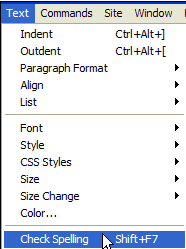
Caution: Don't check the spelling of the Latin words!!
Formatting - Edit Menu
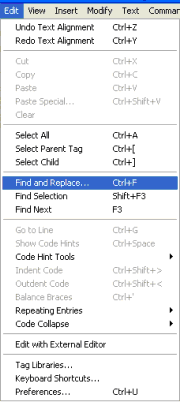
(from Cormia text)
Find and Replace is in the Edit Menu along with Cut, Copy, Paste, Copy HTML, Paste HTML.
Find and Replace can be set to Find text, source code, tags or advanced. It can search the current document, the entire site, selected files or a specific folder.
Creating Text from the Properties Inspector Panel
Hypertext
(from Cormia text)...you've already created Hypertext two ways in previous lessons:
1. by using the point to file icon in the Site Map to Local Files, and
2. by using the Hypertext icon on the Common category of the Insert Bar.
Now you'll create hypertext using the Properties Inspector....
1. Select some text that relates to something on one of your other pages. It may be one word, one letter, a string of words, or an image...
Remember how Class Two index page looked? Well, check it out!
And while you're doing that, look at how the PI looks...
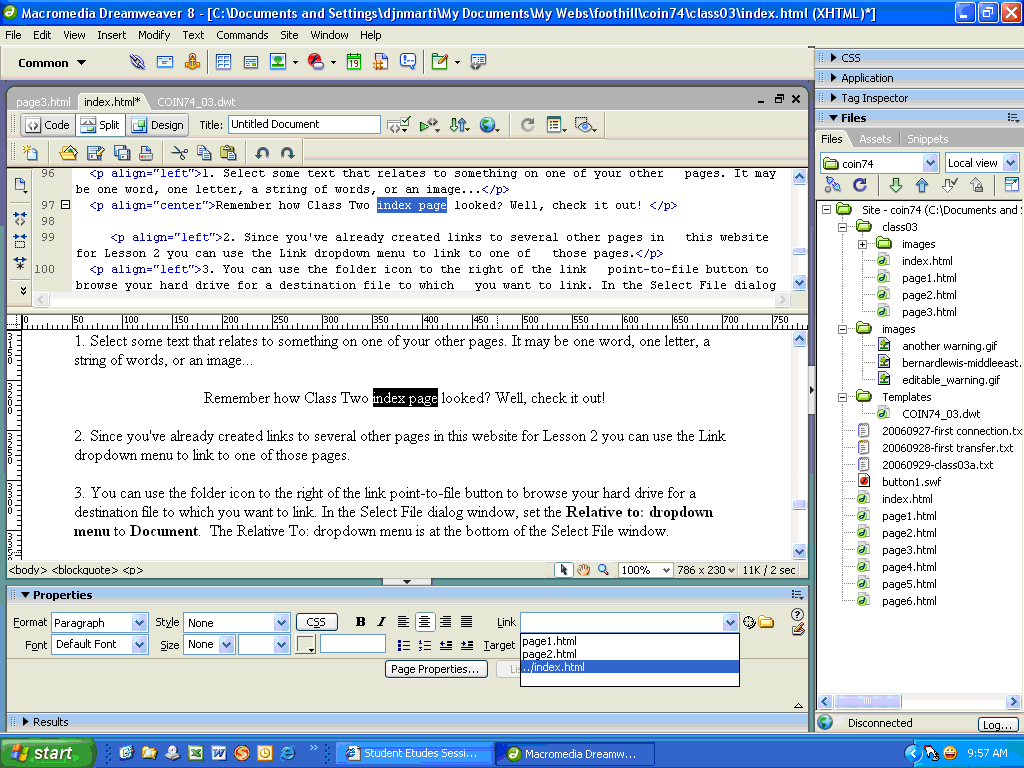
2. Since you've already created links to several other pages in this website for Lesson 2 you can use the Link dropdown menu to link to one of those pages.
3. You can use the folder icon to the right of the link point-to-file button to browse your hard drive for a destination file to which you want to link. In the Select File dialog window, set the Relative to: dropdown menu to Document. The Relative To: dropdown menu is at the bottom of the Select File window.
4. Upon selecting a destination document, the relative link will show up in the property inspector whenever you select the words that you linked. The words themselves will be underlined and when viewed in a browser the cursor will turn into a hand when it rolls over the text. The text has become a hyperlink to another file.
To remove a link, select the text that is linked, go to the property inspector and select the link in the link field and press delete. The underline will be removed and the text will no longer be linked.
Here we go: Remember how Class Two index page looked? Well, check it out!
And while you're doing that, look at how the PI looks...
Oops - then you saw it, now you don't!
The point-to-file icon in the property inspector can also be used to assign links. In order to use the point-to-file from the property inspector you have to have both the Site Window and the current document open and positioned so that you can drag the point-to-file from the PI to the file in the site map. You can position the Site Files and the current document side by side or split your screen with one above the other so you can effectively point and link.
Let's try that now: view page 3 of Homework Two
ohmygoodness - how easy can it get?
You can also use the Modify Menu - Modify>Make Link (or Control + L) or Modigy>Remove Link, Open Linked Page... , or Linked Target. I'm not a menu user but I love the keyboard shortcuts. You can select your text (or image) and press Control+L to open the Select File window and link a file to the text. You can also right click on your selection and select Make Link from the context sensitive menu.
OK - let's try that here. How about seeing page 4?
Now, let's see what the save file screen looked like...
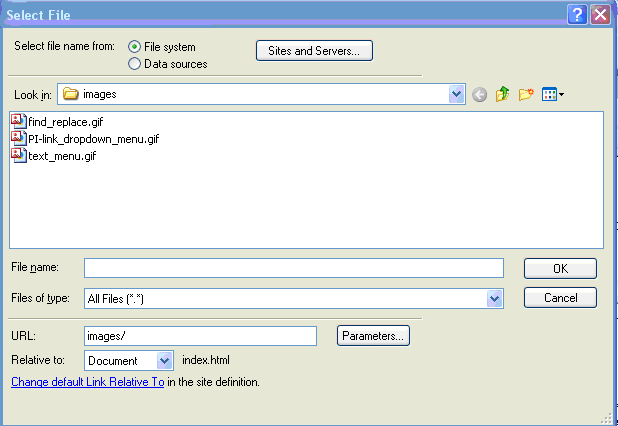
You create image links by following the same procedure as text links. Select the image by clicking on it or on the <img> tag in the tag selector and use any of the above methods to set the links. Try selecting an image and then using the keyboard shortcut of Control + L. See how simple it is?
If you say so... How about viewing the find-and-replace screen image?
Oh-Oh...I wanted to put the image in here. I wonder how that's done with keyboard shortcuts?
Well, I'll try looking on the Insert Menu - there: CTL-ALT-I
.
Hmmm - I was successful in creating an thumbnail image, but NOT in linking that image to it's original!
Well, there is still lots to learn with Dreamweaver...
We're going into more detail about images in Lesson 4. At that time we'll review the PI for images and I'll show you how to do image rollovers, client side image map, and how to create a nav bar from within dreamweaver. I'll also show you a simple way to get control over layout of images with text.
OK - I can hardly wait!!
(from Cormia text) - with bolding, underlines, and indentations by MJR
Links come in two flavors: Absolute and Relative
Absolute links include the entire path to a URL outside of your site. Absolute links are used to link your site to documents outside of your site. Absolute links need the protocol such as the http:// or ftp:// to be entered into the Link field of the PI. Some web browsers allow you to type just the www.something.com but Dreamweaver requires the entire protocol as http://www.something.com.
Absolute links are an entire URL such as:
http://www.macromedia.com/showcase/ or
http://www.anyone.org/someone/anything.html or
ftp://something.com/somefile.html
Relative links are used to reference documents within your local site.
Well, if you tried that last link, you'll see that it actually goes here:
www.adobe.com/cfusion/showcase/index.cfm
That's what happens when one company takes over another!
09/30/2006 10:51 AM
That's enough for now!!
HMMM - when I try to "Save" this page, it always wants to save it as a template, even though I've already saved it as a specifi file. Looks like I'll have to learn more about templates...
OOP, I forgot, I wanted to link this:
(Dreamweaver's description of the document's relative path).
I created a page with HTML-Kit, and then saved it in the root folder for COIN 74, just to see if it'd work.
It does!