index day1 day2 day3 homework3
Martha's COIN 74 - Week 3 - Day Four
10/2/06
NOTE: the sections of indented, italic text are excerpted from Lesson 3 of RD Cormia's online text:
The HTML tag for a hypertext link is called an Anchor Tag and is coded within angled brackets as: <A HREF> and the closing tag is </A>. The simplest use of a Named Anchor is to send users back to the top of your page on a page that scrolls vertically. So right about here would be a good place to add a link back to the top of the page. Follow along so you can insert a Named Anchor Link on one of your pages. If your page currently doesn't scroll, copy and paste my Lorus Ipsum text a few times to take up some space. Only use a back to top if the page is long enough to require scrolling. For an Anchor Tag to work you need the linked text and a Named Anchor. The linked text will be my "back to top" text. The Named Anchor is invisible code identifying a place towards the top of my document where I want the page to display when the user clicks "back to top"...
Step 1 - Move the cursor to the place in your page where you want to link. I call this the destination or target of the link. I'm going to move up to the top of the page and place my cursor to the left of the opening sentence before the words: "Open the default page you created..." Now I want to create an anchor to which I'll link in step 2. I'll then go to the Common category of the Insert bar and click the Anchor icon or go to the Insert Menu - Insert>Named Anchor....A dialog box will open and I will type a name for the anchor. I will enter the name top but you can choose any meaningful name that is short and one word, letters or number(s). When I press the OK button, an invisible anchor icon will appear where I inserted the cursor....The icon is blue when selected and yellow when deselected. Double click on this tag to view or modify the Anchor Name in the Properties Inspector. When you deselect this tag, the PI returns to it's more familiar display.
Step 2 - Return to the area of the page where you'd like to insert the link which will return a user to the top of your page. Select the text or image that you'd like to link...In the Link field of the property inspector, enter the hash or pound sign # followed by the name of the anchor we set at the top of the page = #top.
OK - now it's my turn: Return to Anchor Instructions. With a little bit of luck, if you click that link, this page should return to: "The HTML tag for a hypertext link is called an Anchor Tag..." I created a link before the sentence and named it: AnchorInstructions. Then, I created a link from the words "Return to Anchor Instructions" that did just that. Neat!
Now - let me see if I can create a named anchor link on ANOTHER page. If it works, the link will take you to the table on day 2's page.
Email Link
Email links are super easy using DW! Email links will open a new window in the mail program associated with the user's browser if the user has configured their browser and email client to work together. When you create an email link, the To: field will be populated with the info you enter in the link field. You can link selected text or a selected image to an email link.
Select the text you'd like to use as an Email Link. I'll use "email me at me@anywhere.com". Fill in the email address preceded by mailto:. Do not leave any spaces between the mailto: and the email address. It should look like this: mailto:me@anywhere.com
Another way to insert an Email Link is to click the Email icon of the Common categories on the Insert Bar. This will open the Email Link Dialog Box where you can enter the text and the email address *without* using the mailto: part of the address. You do *not* need to select the text first using this method. You can create the text within the dialog box by clicking the cursor where you want the text to appear in the document, clicking on the button, and filling out the text in the dialog box.
Position and click the cursor in the document, click on the Insert Email Link, create the text and the link within the dialog box and the text will magically appear on the page where you clicked the cursor. You can also access this method through the Insert Menu - Insert>Email Link.
OK - let me try it: Write to me at my Yahoo address.
Here's how the Property Inspector looks when I created that email link:
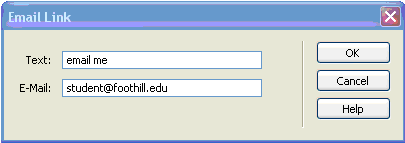
Now let's try the second way: write to me at my Foothill College address student@foothill.edu. Hmm. Let me try that again. email me! There we go. The first time I wrote the address instead of the text. Here's what it looked like:
Checking the Links
Go to the File Menu - File>Check Page>Check Links.
There are no broken internal links on this site; if there had been, information on the broken links would appear in the white box. The Show: dropdown menu offers a choice between reporting on broken links on the local site, on external links, or on orphaned files.
If you click Save...you'll get a text file showing you a report of the links in your site.
Another tool you can use is the Update Link Prompt which I showed you in Lesson 2 when I changed the files names of page1.html, page2.html, page3.html to content.html, etc. When you set this option in the Preferences>General Category, DW will notify you when links need to be updated. This feature only works if you have defined a site...
Another tool you can use is the Update Link Prompt which I showed you in Lesson 2 when I changed the files names of page1.html, page2.html, page3.html to content.html, etc. When you set this option in the Preferences>General Category, DW will notify you when links need to be updated. This feature only works if you have defined a site. I recommend that you define a site for every project. (OK, so now I've said it 101 times!)
OK, let me try now. OOPS! Here's the results I got: "links to files not found on local disk"
Results of Links Check: 
Results of Orphaned Files Check:
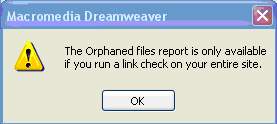
What does this tell me? I forgot to do the ONE THING we're told NOT TO DO! I failed to define this "site". That is, I created a new folder called "class03" for the exercises from Week 3. But I failed to define it as a DW "site", and I have also not linked it to the rest of my COIN 74 website. It seems as if the simplest things are the hardest to remember to do!
So - I'll fix that later, and add an addenda to this page. Let's move on.
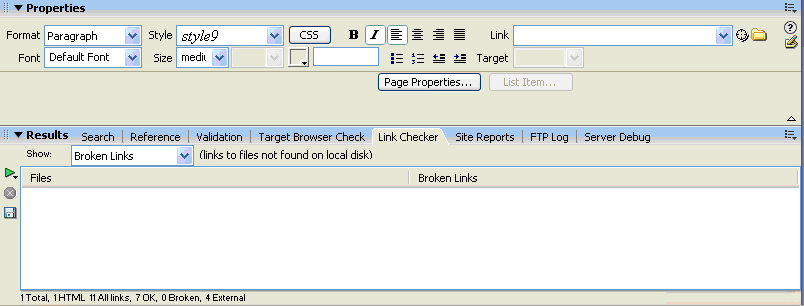
Oh oh. Another goof. I was too quick to find myself at fault. When I returned to the text to continue with the next section, I realized the instructor's image of his results was different from mine. That is, I only looked at the TOP of the results panel, and the real information was at the BOTTOM. I checked my links again, and this is what I found:
My links checked out ok!!!! Reminder to self - don't be too quick to admit defeat. Look for ALL the signs of success; they may be hidden! Trying something new is not just a question of learning the mechanica/technicall stuff; I also have to learn the right attitudes and approaches. So - careful does it. Check and recheck. And then, move on. Speaking of which...
Link Colors
By convention and default, web browsers display links as a blue color and underline the text. Visited links are often a blue-purple color by default. These link attributes can be assigned by the author of the site, and the user can override the settings in their browser preferences. As an author of the site, you can set the link color and decoration, hover color and decoration, active and visited link colors and decoration in the Page Properties under the Modify Menu - Modify>Page Properties or from the Page Properties... button on the Properties Inspector. Open Page Properties of your document and select Links from the left pane of the window...
Experiment selecting different properties for the Links Category and click the OK button. Preview your work in the browser to see if you like your selection. Try some other Underline styles and rollover settings. Make the Link font: Bold or Italic, or both. Preview in browser. For this homework, use different Link settings on different pages. On a real site you would maintain consistency among your pages, but I just want you to explore the varieties of settings for this homework.
Think carefully about removing the underline from links. If you do, the cursor will still turn to a hand to indicate to the user that they are at a link. But many users will scan a page and identify links by their underlining, and if you've removed the underlining, they may miss the link. Think of other ways to make your links noticeable.
Let me start by seeing what my page properties currently are:
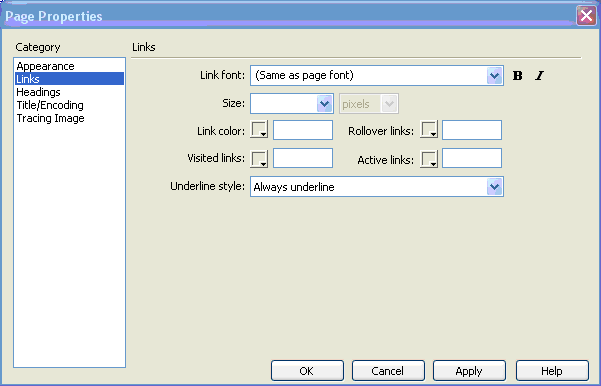
Hmm, none. That must mean I'm using the default style. That's ok for now. Wait a minute - at least try something new! You can always change it back. OK. Here's my new color scheme:

Now, let me save the page and see what they look like. Oh-oh. Very uncool. Well, the links are ok except for the yellow on the rollover - it makes the text unreadable! Let me try something else...

Well, that's a little better. But, the pink does not pass the "Will my mother be able to view it/use it/read it/do it" test. Clearly, I'll have to think very carefully before I mess with changing the colors of the links. Moving on...
Links in a Jump Menu
This final section of Week 3 seems to be more a taste-of-what's-to-come than anything else. I like the idea of learning how to create a jump menu that will organize my links. So, I guess I'll have to wait until later lessons to even begin to understand them. I know I create jump menus before when I studied JavaScript, but I don't remember how to do it! That's why I'm really glad that I continue to take classes - it keeps me in practise, and reduces the amount of info that I lose touch with. Well, that's enough for now, I guess. I'll take a look at the Homework assignment, and tackle it another day.
Return to Day One of Martha's COIN 74 Week 3 Class Exercises
Continue to Martha's COIN 74 Week 3 HOMEWORK
© mjraup 2006
Email Me!