The Keyboard Shortcuts dialog box appears.
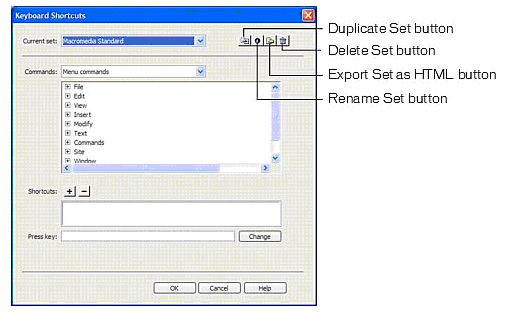
For more information, see Setting the Keyboard Shortcuts dialog box options.
Use the Keyboard Shortcut Editor to create your own shortcut keys, including keyboard shortcuts for code snippets. You can also remove shortcuts, edit existing shortcuts, and select a predetermined set of shortcuts in the Keyboard Shortcut Editor.
NOTE |
|
A chart showing all the keyboard shortcuts in the default Dreamweaver configuration are available as a quick reference guide on the Macromedia website at www.macromedia.com/go/dw_documentation. |
The Keyboard Shortcuts dialog box appears.
For more information, see Setting the Keyboard Shortcuts dialog box options.