|
|
|
|
|
|
|
|
Martha's COIN 74 Week 6 Exercises
Day One - Flash Text
To insert the preset Flash Objects into your page, click the cursor where you want to insert the object (either the flash text or flash button). Select either the Flash Button or Flash Text button icon from the Common Group of the Insert Bar. You can also insert these objects by going to the Insert Menu - Insert>Media>Flash Text or Flash Button....The Insert Flash Text Dialog Window displays the options we can select for our flash text. Remember that the text is really a flash movie saved in the .swf (shockwave flash) file format. It's pronounced 'swiff'. This dialog window is very similar to a rollover dialog box. Essentially what you are doing is:
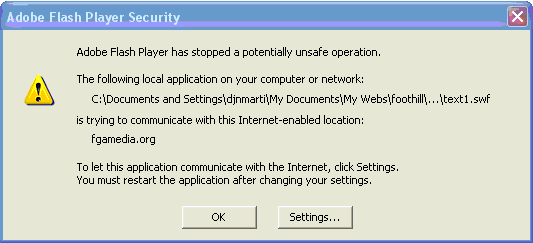
Hmm - that was fairly easy to do. However, I got an alert from Dreamweaver to check my settings. Then, I got redirected to this site: http://www.macromedia.com/support/documentation/en/flashplayer/help/settings_manager04a.html. I wonder what this means? Here's the warning sign I got.
If you want to modify the flash text, just double click on the text to bring up the Insert Flash Text Window. You can also select the flash text and edit some properties with the Property Inspector. The Property Inspector shows the Flash Icon in the upper left corner. It identifies this object as Flash Text and provides a blank field for the name of the object. Remember, this is not the file name. Continuing in the top pane of the PI, we see the width and height attributes. Notice that editing the W and H attributes of flash text does not distort the file the way it does with images. Remember that with images, the W and H field numbers will be bold if they are not the original size attributes of the file. This is different with flash text. Next we have the file name, the link icons of point-to-file and folders, an edit button, a class dropdown menu, and reset size...In the bottom PI pane we have V and H space which allow you to add blank space to either the vertical or horizontal or both areas around your movie. Don't worry about the Quality and Scale for now. Check the options for vertical alignment in the Align dropdown menu. If you click on the Play button, you'll be able to see the rollover effect from within Dreamweaver so you don't have to Preview in Browser to see your work; however you will need to hit the Stop button in order to do any editing to the flash movie. The Bg color chip lets you select a background color and don't worry about the Parameters... button now.
Page Created 10/28/06 Assignment Submitted 11/05/06
Document Last Modified:
© mjraup 2006
Webmaster