


|
|
|
|
|
|
|
|
Martha's COIN 74 Week 10 Exercises
Day Three - Div Tag and Float Attribute
The DIV Tag
The <div> tag defines an HTML container. Div tags, among their many uses, are needed to create layers that use absolute positioning. CSS style attributes are often applied to the <div> tag; the styles then affect all of the contents of the container defined by the the <div> tag. As an example, look at the code below; the <div> tag defines a box containing a table with two colored cells, and the <div> styles specify where on the page the "div box" will be positioned, as well as its color and border attributes.

(See what appears on a page with this code)
The <div> tag is a block-level element, just like a <p> paragraph tag. A block-level element is one that begins on a new line and is independent of previous tags. The opposite of a block-level element is an inline element such as the <a> anchor tag, <br> line break tag, or the <span> tag which contains elements within a block. You use the span tag for a word or group of words within a block. You use the div tag to create a block. For this course, please do not use the span, layer or ilayer tags to create layers. This is because of browser incompatibilities. Use the div tag to create layers for absolute positioning and the span tag to select inline elements to apply a style to.
You can think of the div tag as "div"iding the page into different areas or containers of HTML elements.
To insert a div tag into your document, select the location in your design window where you wish the div container to appear; then go to the Common Category or the Layout Category of the Insert Panel and click the Insert Div Tag icon button. You may also use the Insert Menu to add a div container; go to the main menu and select: Insert>Layout Objects>Div Tag.



The Insert Div Tag window will now open; here you can specify where to insert your div container, as well as assign a pre-existing CSS Class to it (or create a new one by clicking the New CSS Style button) and/or assign a CSS ID to it.
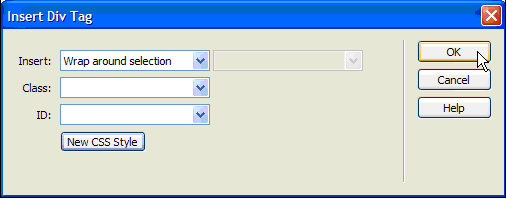
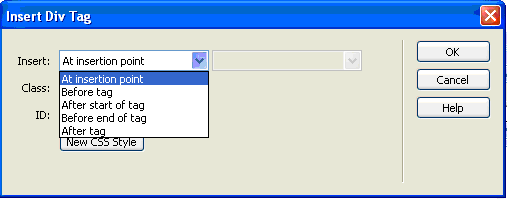
You can select an insertion point for the div container from the Insert: dropdown menu. If you have selected an object in your design view, you can choose the option "Wrap around selection", and the div container will then enclose your selected object. If you simply clicked in the design window, you can choose the option "At insertion point", and the div container will then be placed at the point where your cursor is. In both cases, you can also choose to insert the div container "After start of tag", or "Before end of tag"; with these choices , a new dropdown window appears which will allow you to choose the specific HTML tag you want to reference.
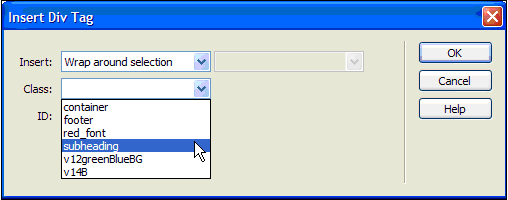
The Class: dropdown menu lists all the CSS classes you have defined for this document. Simply choose the one you wish to apply to the div container.
The ID: menu will show any class ID's that have been defined but not yet assigned (remember, a CSS ID can be used only one time in a document); simply choose the one you wish to apply to the div container.
Once you have specified an insertion point and any CSS you wish to apply to the div container, click the OK button. A dotted box will appear in your design window to represent the div container, and you may insert any content you wish into the box.

The Float Attribute
The "float" attribute of the div tag functions like the align attribute of the image tag and allows relative positioning of a block element. Float sets which side other elements, such as text, layers, tables and so on, will float around an element. The Float attribute is supported by both browsers and in this section I will show you how to assign the Float attribute to a div box. We will need to accomplish two tasks -- create a CSS Style that specifies how other objects will 'float' around our div container, and then assign that style to our div tag.
"The basics necessary to mark off a column of text 150 pixels wide to float to the right of its parent element (by default to the full-page <body> element) would be to create a CSS class - <style> .rightcolumn {float:right; width:100px} </style> - and then apply it to any arbitrary block of content - <div class="rightcolumn">. column text . </div>." - Tom Arah in The Future of Web Layout
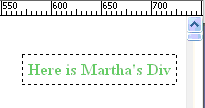
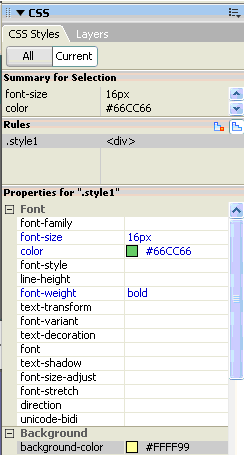
Start by creating a div tag. Type some text into the content area and create a new style using the font attributes in the PI. I made the text size 16, color green and bold to create a style1.

Open the CSS Styles Panel and find the style in the All Rules window. Select the style and click the Edit Style... button on the lower right of the CSS Styles Panel.

The Edit Style... button will open the CSS Rule definition window for .style1. Select the Box Category from the left Column. Select the Float: dropdown menu on the upper right. Select the "right" option for the Float. Fill in some of the other options for Width, Height, Padding and Margin.

Before 
 After
After
Click OK, and look at your CSS Styles panel -- you will see the attributes you just selected in the Properties window. Remember, these attributes can be edited right in the Properties window. View your document and then change some of the attributes to see a live update.
You can always use the Tag Selector at the bottom left of the Document Window's Status Bar to select a div tag.

Note from DW Help: Content block div tags that are absolutely or relatively positioned act like Dreamweaver layers. For information about working with these div tags, ... see Setting layer preferences and properties, Managing layers, or Manipulating layers.
Content block div tags that are not absolutely or relatively positioned do not have visible borders, but when you move the pointer over a content block, Dreamweaver highlights the block (as long as it has a class, id, or style associated with it). To change the highlight color or turn highlighting off, see Changing highlight color for content blocks.
When you select a content block that is not absolutely or relatively positioned, you can view and edit rules for it in the Tag Inspector. You can add content to the block by simply placing your insertion point in the block, then adding content just as you would add content to a page. You can nest layers but the display is not compatible in the two major browsers.
Page Created 11/30/06 Assignment Submitted xx/xx/06
Document Last Modified:
© mjraup 2006
Webmaster