


|
|
|
|
|
|
|
|
Martha's COIN 74 Week 10 Exercises
Day One - Layers
Martha's Layers
Martha's Layers - Part II
Layers allow you to control the position of your elements more precisely than ever before. Remember how we used tables to apply layout and structure to our page elements? Now you can use layers as containers for HTML content, and position the layers anywhere on the page. In addition to affecting the visual appearance, using layers can increase the interactivity of your site.
"Layers" is a term used in several computer programs to define a semblance of depth -- of one object on top of another. This is also known as the stacking order. We are trying to create a 3rd dimension on a 2-dimensional surface. In Dreamweaver, we have the x-axis or horizontal axis, the y-axis or vertical axis, and now we add the z-axis which defines the (visual) depth of an object.
HTML layers are a technique of DHTML (Dynamic HTML) . Using layers you can simulate animation, hide or show elements in order to create those wonderful menus that drop down upon a mouseOver or mouseClick, and more. Dreamweaver even comes with its own Timeline where you can create frame-based animations using .jpg, .gif, .swf and other files.
To summarize, layers enable you to define containers of HTML content that can:
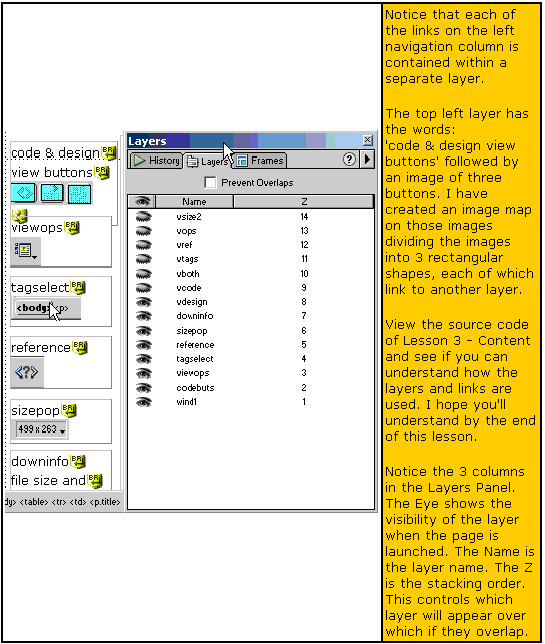
I used an example of layers in this course that is in a lesson on Content for an earlier version of DW. Take a look at that page to see how the visibility of layers and links were used to effectively create a navigation system on the left that displays dynamic content in the main window on the right. The image below displays the Layers Panel for the Lesson 3 .html document. Please note that the content of the page is not applicable to DW 8. Just view the page with reference to its structure and layout using layers.
- be positioned in an exact position on the screen
- stack in front of one another
- animate automatically or by user interactivity
- hide or show based on time or user interactivity
Disadvantages of Layers
The main disadvantage of using layers is browser incompatibility and/or browser inability to understand or support overlapping layer tags.
Creating Layers
In order to create a layer, you can use the Draw Layer icon/button on the Layout Category of the Insert Bar. You must be in Standard View of the Layout Category. (This button is the third from the left.)
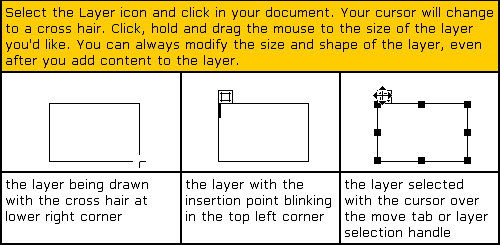
When the layer is drawn you can insert content including text, table, image, .swf, .dcr, etc. When the layer is selected you can use the 8 handles to resize and reshape it. You can move the layer to any position in your document by placing the cursor over the tab on the top left of the layer. The cursor will change to the bold double arrow cross and you can drag the layer anywhere including over existing content and existing layers, unless you select the Prevent Overlaps checkbox at the top of the Layers Panel. The Layers Panel is part of the CSS panel; you can open it by going to the Window Menu>Layers or by using the F2 key.
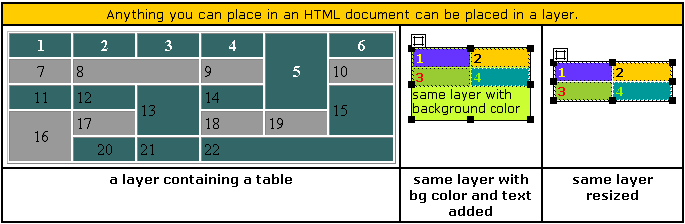
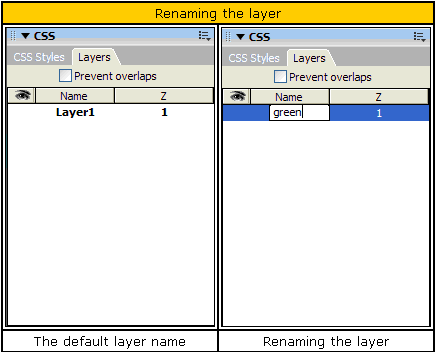
Open a new HTML file and create a layer. By default, DW names it Layer1 and assigns it a Z-index of 1. Rename the layer to green by double-clicking on the Layer1 name and typing green.
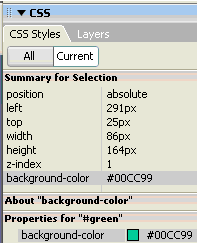
You can add CSS styles to your layer (if you wish) by clicking on the CSS Styles tab, selecting the layer (note that layer names in this panel are preceded by a hash mark -- #), and adding properties to the selection.
Now create a second layer named yellow. By default, the new layer will appear on top of the layer list in the Layers Panel. The Z-index will be a higher number than the green layer.
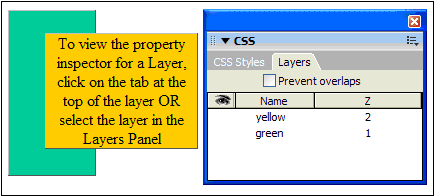
The green layer was initially assigned a z index of 1 and the new yellow layer was assigned a z index of 2. In Dreamweaver, the layer with the highest number (the layer on the top of the layers list) will display in front of other layers. 2 will cover up 1, 3 will cover up 2, etc. You can change the z-index of a layer by selecting the z-index value and typing in a new value. You can use negative values for the z-index, such as -2, -1, etc. Layers with negative values will stack below layers with positive values.
As you can see in this example, layers can overlap. The Prevent Overlaps checkbox prevents layers from overlapping.
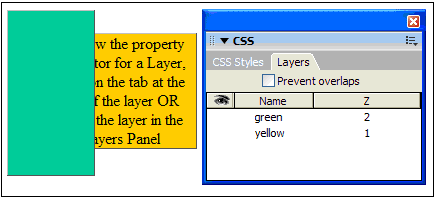
You can change the stacking order of layers by clicking and dragging the name of a layer to a new position, as in the example below.
You can select multiple layers by shift clicking on the layers. This will enable you to move the layers simultaneously. You can also align the layers by going to the Modify Menu - Modify>Align and selecting an alignment option after you select the layers you want to modify. The last layer you select will provide the position for the alignment of the other layers. This is different than in some other graphic programs.
To delete a layer, select the layer either in the Layers Panel or the layer itself and press delete. There is a bug in Mac OS X which will not allow you to delete a layer from the Layers Panel. You must select the layer in the Document Window and then hit your delete key.
Page Created 11/29/06 Page Finished 11/30/06 Assignment Submitted xx/xx/06
Document Last Modified:
© mjraup 2006
Webmaster