|
|
|
|
|
|
|
|
Martha's COIN 74 Week 10 Exercises
Day Five - Behaviors
Behaviors are JavaScript scripts that are already written and stored in Dreamweaver for your use. You don't have to know JavaScript to use them. Basically you use a behavior by selecting an action from column A and its associated behavior from column B. If you use flash or director you'll recognize the behaviors panel. If this is your first time using behaviors, you'll be amazed to see the magic you can create with the click of a button.
Here are some things you can do using Behaviors in Dreamweaver
To add a behavior to a page you need to select an object and an event based on the browser flavor and version that will support that behavior. Then you select the behavior that will be triggered by the object and event. Not all browsers support every behavior but you can select the browsers that you want for the design of your site and select the behaviors associated with those browsers.
Behaviors are event driven. The event can be a user event such as a mouseOver or mouseClick or a timed event such as a refresh of the page after a specified amount of time. Every event that is defined has an associated action. One event can be associated with several actions.
The Behaviors Panel
Open the Behaviors Panel -- use the Windows menu (Window>Behaviors) or use Shift + F4 keys.

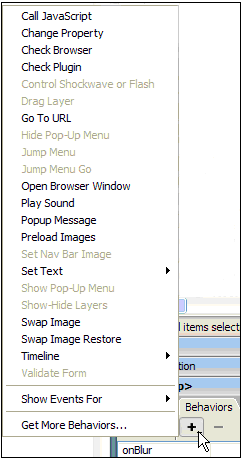
Notice the top of the Behaviors Panel; it says: Tag <p>. I have positioned the Behaviors Panel over the design window so that you can see the insertion point for the cursor -- in a paragraph of text -- to the left of the panel. The Behaviors Panel automatically shows the events that can be associated with the current element on the page. The available events are context sensitive, and will change based on which type of HTML object is selected on the page. You will see different events for the <image> tag than you will for a paragraph.
The + button, or Add behavior button, opens the list of behaviors available for the selected page element and event.
Add Behaviors for P tag on Left - Add Behaviors for IMG tag on Right
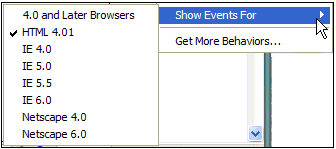
The behaviors included in DW 8 have been written carefully so that they will work correctly in all modern browsers, going as far back as Netscape Navigator 4.0 and IE 4.0. However, you may choose to target specific browsers by using the "Show Events For" entry near the bottom of the Add Behavior menu; click this entry to select the browsers you wish to target with your behaviors.
If you are using a behavior on a linked item such as text or an image, make sure you deaden the link by inserting javascript:; in the Link field of the PI before selecting your behavior.
Select a <p> tag from the tag inspector in the status bar of the Document Window. Now Click the Add behavior button to display the behaviors that are associated with the paragraph tag.
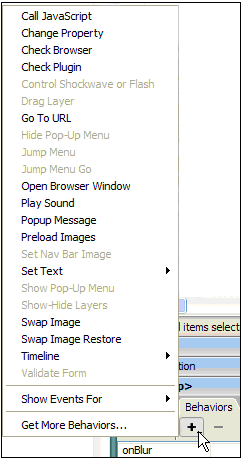

Martha's Add Behavior for Paragraphs on the right shows a downloaded Extension for Studio VII
Note that many of the Behaviors are dimmed out or unavailable for the <p> tag. Your list will look different than mine. Your list will only show the behaviors that ship with Dreamweaver. I added more behaviors through the use of the Macromedia Exchange. These additional add-ons extend the functionality of Dreamweaver and are called Extensions. There are many sites where you can download extensions. You can go to the Macromedia Exchange to add extensions by clicking on the Get More Behaviors... command on the bottom of the behavior list.
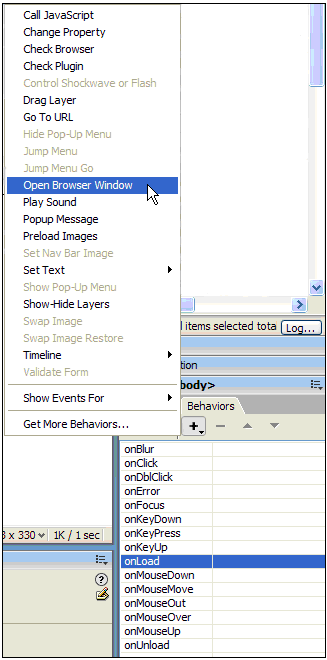
Select an image on your page and click the Add behavior button on the Behaviors Panel. Notice that there are more behaviors available for an image than for a paragraph.
Click to s ee Add Behavior for Images
This is the Behaviors Panel for the selected image to the left of the panel. The long list starting with Call JavaScript represents the list of behaviors that I can use on this image. The Title Bar of the Behaviors Panel should display: Tag - <img> when you select an image and select the Add behaviors button.
With the browsers set for those of your target audience, you can use DW's DHTML features and be safe. You can also create another page by converting layers to tables for an audience who might not have the latest browsers which handle layers. But how do you determine who sees which page?
Using the Check Browser Behavior
Here's a quick way to learn to use behaviors. The Check Browser behavior will check to see what browser your user is using and send them to a specific page that you define based on the information it returns using JavaScript. You will attach the Check Browser behavior to the <body> tag element in your page. First, you need to create 2 versions of an html page. Make 1 compliant with 4.0 browsers and the other 3.0 browsers and name the files: browser4.html and browser3.html. Then follow the steps to use the Check Browser behavior and direct users with 4.0 browsers to the browser4.html page using layers, and those with older browsers to the browser3.html page using tables.
Select the <body> tag in the tag selector.
Select Check Browser from the Add Action + button drop down menu. This will display the Check Browser dialog box.

There are 5 dropdown menus and two Browse... fields. All the dropdown menus have the same 3 options:
Stay on this Page, Go to URL, Go to Alt URL.
Select the Browse... button to the right of the URL field and navigate to browser4.html.
Select the Browse... button to the right of the Alt URL field and navigate to the browser3.html.
Leave the 5 drop down menus in their default options so they read in this order from top to bottom: Go to URL, Go to Alt URL, Go to URL, Go to Alt URL, and Other Browsers Go to Alt URL.
If you have a version of a 3.0 browser and a 4.0 browser on your machine, you can test this behavior. If not and you've done it correctly, DW will do a 'browser sniff' for you and redirect your users to their appropriate pages.
You've just created your first behavior and a mighty useful one at that!
Summary for Behaviors

More Behaviors Tips and Behaviors to Test
Behaviors can not be attached to text but you can make the text a null link and attach the behavior to the anchor tag. <A HREF="javascript:;">some text</A>. If you don't want the text underlined, you can create a style and set the Decoration to None or an embedded link to change the link, active and visited link colors to the same color as the rest of the text or any color you choose. Some behaviors for image elements are closed in parentheses. This indicates that you need to use the anchor tag to use the behavior just like we did for the linked text above.
Page Created 11/30/06 Assignment Submitted xx/xx/06
Document Last Modified:
© mjraup 2006
Webmaster