|
|
|
|
|
|
|
|
Martha's COIN 74 Week 9 Exercises
Day Four - CSS Classes
Select the New Style button from the CSS Styles Panel and select the Class Selector Type Radio Button. A class enables you to apply a style to many different page elements whereas the redefined Tag redefines the look of a specific tag. Name the Class something descriptive such as .14Bgreen for 14 point bold green font (added by Martha), or .p_indent for a different paragraph style than your standard paragraph tag...I named my custom class .h14b. Whatever you put will be preceded by the dot even if you forget to put in the dot before the name. Define In: This Document Only and press OK.
This will open the CSS Style Definition for .h14b. I've defined some attributes and values for the Type and Background categories including the none checkbox for the Decoration on the Type category. None for decoration means that if I apply this class to an anchor tag, there will be no underline to define the text as a link but the cursor will still change into a hand when the user puts the cursor over the text to provide a visual cue to the user that the element is hypertext or linked. Here is an example of... ...the class is an attribute of the paragraph tag and the text is not contained in span or div tags.
<p align="left" class="h16blue">Here is an example of Martha's heading .class</p>
The selector and declaration are listed in the style tag at the top of the HTML document in the head tag:
<style>.h16blue {
font-size: 16px;
font-weight: bold;
color: #99CCFF;
text-decoration: none;}
</style>
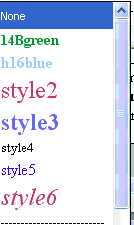
To apply the sample class to an entire paragraph, merely click within the paragraph (without selecting the entire paragraph) and select the class from the Style dropdown menu of the PI. The style is applied to the paragraph. To undo the application of a style, either click within the paragraph or make a selection on selected text and select None from the Style dropdown menu in the PI.
You can also rename and manage styles from the Style dropdown menu of the PI. Rename styles 1, 2, and 3 to something more descriptive now. Select the Rename... option from the Style dropdown menu and then select the style you want to rename from the Rename dropdown menu of the Rename Style window.
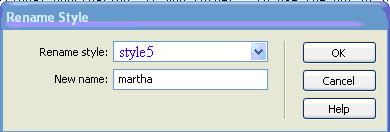
An error message appears reminding me that there is a rule for naming classes...Class names must start with an alphabetical character preceded by an optional period. There should be no spaces or additional punctuation. If you forget to use the dot or period at the beginning of a class name, DW will add it for you.
Here's what happened when I changed the "style 5" to " martha" - all of the earlier uses of the style were updated!
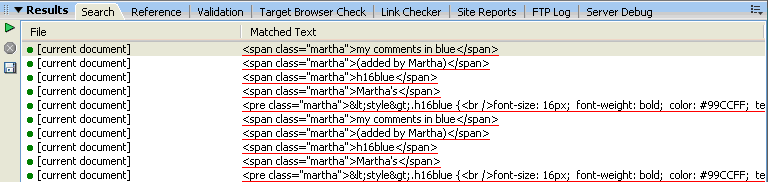
...The Rules panel lists all the styles for the active document. Rename all your styles to reflect intuitive names.
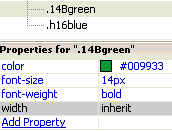
There is a quick way to view and edit the attributes of a selected style in the CSS Styles Panel. Notice the Properties window that is just below the All Rules window in the CSS panel. Whenever you select a style in the All Rules window, the attributes of that style appear as blue text in the Properties window, as you can see in the illustration above. If you wish to change an existing attribute, simply select the appropriate attribute value (on right side of the display) and enter the new value. Often, as in the illustration below, a dropdown menu or other aid will appear which will make it easy to choose your new value. If you wish to add a new rule to your style, click the Add Property link in the Properties window and all of the available, unused attributes will appear in black. Simply select the one you wish to use and enter a value for it.
Important: You must manually apply any classes you create to HTML tags in your document. Only the HTML tags with styles defined for them (such as the <li> tag) or contextual selectors created from these HTML tags will display the associated styles automatically. I have to manually apply all of the classes (the custom styles I created that begin with a dot such as .verdana3bold, .v12, etc.) to every HTML tag I wish to apply them to.
Page Created 11/26/06 Assignment Submitted xx/xx/06
Document Last Modified:
© mjraup 2006
Webmaster