|
|
|
|
|
|
|
|
Martha's COIN 74 Week 9 Exercises
Day Five - Tag and Contextual Selectors
The Tag Selector
The Tag Selector allows you to see any HTML attributes that are being applied to any element on your page. Open the Tag Selector (Window>Tag Inspector) and simply click on an object in your Design window. The Tag Selector will show the HTML Attributes available for that object, as well as the current values of any attributes already assigned values! You can add or change attribute values for HTML attributes using the Tag Selector in the same way that you change CSS attribute values in the CSS Styles Properties window. Here I have undocked the Tag Selector and moved it next to an image -- when I clicked on the image, a list of available HTML <img> attributes appeared, as well as the current values for the attributes that were already specified.
Creating a Contextual Selector
So far, you've redefined an HTML tag and created a class using the New CSS Style window. The remaining radio button option in the Selector Type is the Advanced (IDs and Contextual Selectors, etc.). The Advanced option is used to create a combination of tags or tags that are nested in other tags. If you have already redefined an HTML tag, you can use that tag in combination with or nested within another tag.
One of the best definitions and examples of a Contextual Selector comes from CodeAve.com
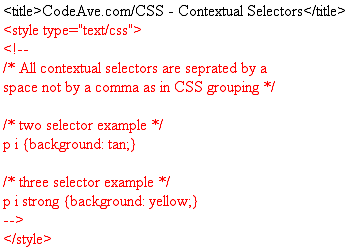
"Contextual selectors define styles that are only applied when certain tags are nested within other tags. This allows you to use a tag and not have it adopt the CSS attribute each time it is used. In this first example we have the <p>tag defined by a contextual selector to only display a tan background behind the text when there is an <i> tag nested within the <p> tag. The second example we nested a strong tag within the <p> and <i> tags to display a yellow background. Only the combination of either of those tags will yield a background color."
Read more and view the HTML code for using this Contextual Selector - http://www.codeave.com/css/code.asp?u_log=4025 - retrieved April 22, 2004. image added by Martha
In the example above from CodeAve.com, the <p> tag will not display a tan background behind the text, the <i> tag will not display a tan background behind the text. However, when the <i> tag is nested within the <p> tag a tan background will display behind the text. CodeAve.com adds: "All contextual selectors are seprated by a space not by a comma as in CSS grouping."
<p><i> this combination will display a tan background behind the text <i><p>
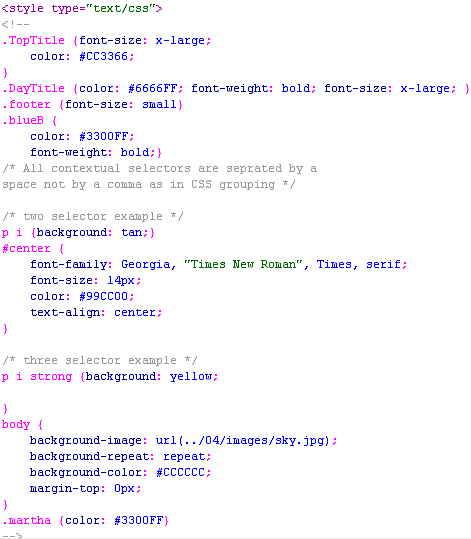
The selector and declaration for this selector are in the style tag in the head of the HTML file.
Here is an example of the PI Contextual Selector
p i strong{background: tan; strong}
p strong i
(I reversed the "i" - and there's no "style" for this! But, it still qualifes for the "p i" style.)
This was tricky. Dreamweaver now uses "em" instead of "i" for italic. I had to hand-code this section.)
The Advanced Selector Type also lets you create IDs. An ID is a unique identifier for an element. You can only use each ID once on each page. IDs are used with scripts that require an ID name. An ID is preceded by the pound or hash symbol #.
Here is an example of a selector and declaration for an ID
#center {font-family: Georgia, Times New Roman, Times, serif; font-size: 14px; color: #99CC00}
(martha created ID and added snippet with white background)
Read more about the ID Selector at the World Wide Web Consortium (W3C) site:
http://www.w3.org/TR/REC-CSS2/selector.html#id-selectors
or at the CSShark site: http://www.mako4css.com/BasClass.htm
or at the CSS-Wiki Discussion Board, Class vs. ID Topic: http://css-discuss.incutio.com/?page=ClassesVsIds
Exporting your Styles to an External Style Sheet
All the styles that you have created in this lesson reside in the current document. When you created a new style from the New CSS Style window, you selected "This document only" as the Define in: radio button selection. The other radio button in the Define in: radio button set is "(New Style Sheet File). When you select a "New Style Sheet File", DW will create a new document that will have all the styles you create defined in the document. The file format for this file is .css and it is a text document. The styles will be defined in the code the same way they are defined in the style tags of the head of the document when you select "This document only".
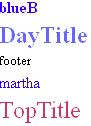
Oops - before we export this style sheet, I'd better rename the styles to something "intuitive!
Here's what I came up with:
There are several advantages to using an external style sheet. I mentioned before that you can link and reference styles in an external css file from all the pages in your site, managing the modifcation of the styles to one location. In addition, all the code for your styles takes time to load on each page. When you write the code once and link to it, the pages in your site will load quicker because the style code only has to download once.
In this part of the lesson, I'll show you how to convert your internal styles to an external style sheet. First, it is possible to have both internal styles, external styles, and inline styles (which I haven't discussed yet). But it makes more sense to remove any internal styles that are duplicates of the external. So let's convert the internal styles you created now. Follow the steps to convert your internal styles to an external .css file.
|
Go to your Files Panel in DW and navigate to the .css file you just created. Open the file. The css file will only open in Code View. The buttons to view in Split or Design are dimmed out because you can only view .css files in Code View. You will see the same style tags that were - I mean still are - in your current html file. Hmmm. If we exported the styles, why are they still in the original HTML document? Good question. DW does not remove the styles when you export them to a .css file, so you have to go into the original HTML file and remove them and then link your HTML file to the .css file. Let's remove the internal styles that we just exported and then link our html file to the external css file.
Remove Internal Styles and Link External Style Sheet
There are several ways to delete internal styles. You can select your .html file and then go to the CSS Styles Panel and select the word <style> from the All Rules window. Simply click the trash can icon button on the bottom right of the panel to remove all your styles at once.

The trash can is on the lower right. I chose NOT to use this option!
You can open your file in Split View and select the style container tags in the head of the document and remove them. Container tags have an open and close tag like this: <style> </style>. Select these style tags and all the content contained within these tags.
Martha's internal styles here (before removal
Martha's code AFTER internal styles were removed:

Once you have deleted the styles, your HTML file will lose all it formatting. [He's right!!] Don't despair. You have saved the styles in the external.css file and now all you have to do is link the html page to the css file with simple click of a button in the CSS Styles Panel. The first icon button on the bottom right of the CSS Styles Panel is a piece of chain link. That is the "Attach Style Sheet" button. Press the Attach Style Sheet button now to open the Attach External Style Sheet dialog box.
Browse for the file and select the Add as: Link Radio Button. Notice the DW has sample style sheets to get you started. These are predesigned and you may modify these files or use them as is.
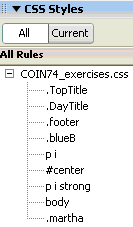
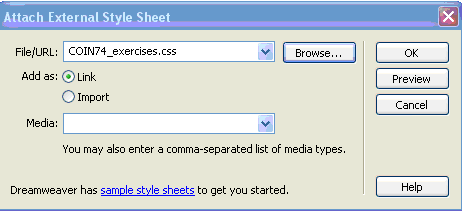 Your linked .css file now appears in the CSS Styles Panel.

Expand the style sheet by
clicking on the + sign to the
left of the .css file name.
VOILÀ! |
 |
Document Last Modified:
© mjraup 2006
Webmaster