


|
|
|
|
|
|
|
|
Martha's COIN 74 Week 4 Exercises
Day Three - Navigation Bar
see also Day Seven - Navigation Bar Part II - creation of my OWN version - shown above!
Dreamweaver makes is super easy for you to create a navigation bar or navbar. This feature is based on the Image Rollover we learned earlier in this lesson. Instead of the browser responding only to the rollover event, the Nav Bar features instructs the browser to respond to four mouse events. These events are similar to button timelines in Flash and consist of 4 states:
Up - displays the initial original image
Over - displays the rollover image
Down - displays a third image when the user clicks the mouse
Over While Down - displays a fourth image if the mouse stays on the image after the image has been clicked. I recommend that you DON'T use this state. ON SOME BROWSERS this state doesn't work, so many designers leave out this state and just use the up, over, and down states. I included this in my Nav Bar, but don't see it. It must not work in Internet Explorer...
To create the Navigation bar you will need 3-4 images for each item or button on your navbar. I want to have 4 categories: Company, Products, Clients, Contact so I will use my image editing program to create 3-4 images for each of the categories, resulting in 12 or 16 images depending on whether I use the Over While Down state. These images should all be the same pixel dimensions.
Several image editing programs such as Fireworks and ImageReady allow you to create the interactive Images from within their program and export into Dreamweaver with the code for the HTML created. If you don't know how to use the programs or you don't have an image editing program, you can use the sets of button I've created below as a sample.
Take time to prepare or copy your images now so that you can follow along the demo and create your Dreamweaver Navigation Bar with me. To copy these images right click (control click on a Mac) and save to your images directory within your root folder of your site. Or simply download the zipped archive (click on this link.)
Follow These Steps to Create your Dreamweaver Navigation Bar
1. Click the cursor where you want to insert the navigation bar. The bar can be positioned either horizontally or vertically on your page. I think I'll put it right here...
 |
 |
 |
 |
2. Click the Navigation Bar option in the Image drop down menu of the Insert Bar or go to the In3. This will open the Insert Navigation Bar window. The Nav Bar Elements box at the top is only a display field. You can not enter any info into this field. Enter a name in the Element Name field. I entered company for the first element in my Navbar. sert Menu - Insert> Image Objects >Navigation Bar. Here's what that looks like: 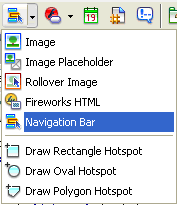 (image inserted by Martha)
4. Browse for the Up, Over, and Down images for the company button (and the Over while down image, if using).
5. Enter Alternate text for your link and insert the URL for your link in the When Clicked, Go to URL: field. Forgot to do this. Let me go back and add this... Hey, this is easy!
6. Keep Preload Images checked. Checked on this - it was already done.
7. Select a page orientation for your nav bar using the Insert: dropdown menu and click the Use Tables checkbox. Hmmm - this option doesn't show up on the Modify Navigation window. Table must have been pre-selected when I initially set up my Nav Bar, or maybe it's the default. I DID have to add a center alginment to the table after in was created..
8. Click on the Plus Button + at the top of the Insert Navigation Bar window to add a second menu element. I named this one products. Browse for the 3-4 states of the products element, and add its link and alt fields. Do the same for the remaining 2 elements: clients and contact... This was the fun part. I didn't get it at first, and deleted two attempts before I finally read ALL of the instructions, and re-created the nav bar correctly.
9. Click OK and the nav bar will be displayed. There it is!
In order to see the buttons function, go to File>Preview in Browser. Each image has 3 states. For demo purposes, I've kept my links null by setting each link to javascript:; (Again, depending on your browser and OS, the over while down may not work so just leave it out.) Hmm, I must be missing something - I only see TWO states. Did I do it correctly?
10. To modify this nav bar, go to the Modify Menu - Modify>Navigation Bar which will bring up a window that looks similar to the Insert Navigation Bar window above but will say Modify Navigation Bar. You can edit your navbar in this window. THIS was the most important instruction. Why was it placed last?
Page Created10/11/06 Assignment Submitted 10/17/06
Document Last Modified:
© mjraup 2006
Webmaster